FrostMist strategies are installed in NinjaTrader using the standard NinjaScript import process.
Video Walkthrough
Watch this short setup video to see the full process: ordering, downloading, installing, licensing, and launching a FrostMist strategy in NinjaTrader.
Quick start
- Download your FrostMist strategy
- Open NinjaTrader
- Import FrostMist package
- Add strategy to chart
- Paste your FrostMist key into License
- Configure the strategy
- Enable the strategy
Step-by-Step Setup
1. Download your FrostMist strategy
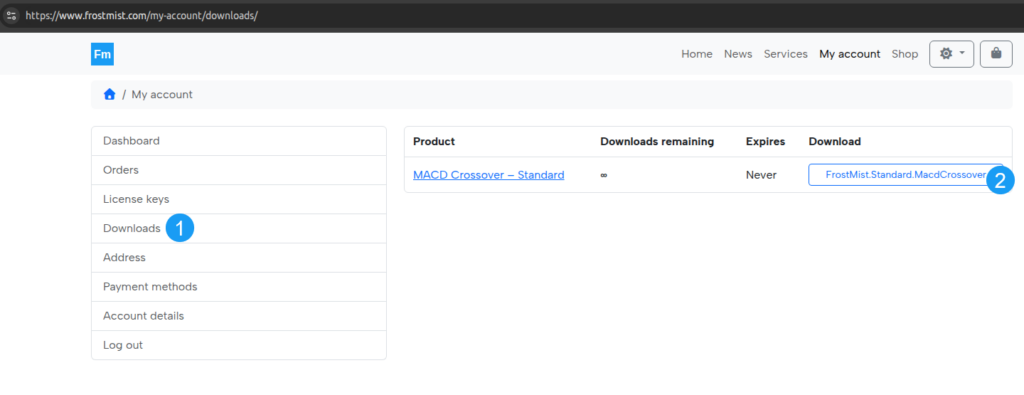
Download the strategy package from your FrostMist order page or delivery email. Save the ZIP file to an easy-to-find location on your computer.
2. Open NinjaTrader
Launch NinjaTrader and wait until the Control Center is fully loaded before starting the import.
3. Import FrostMist package
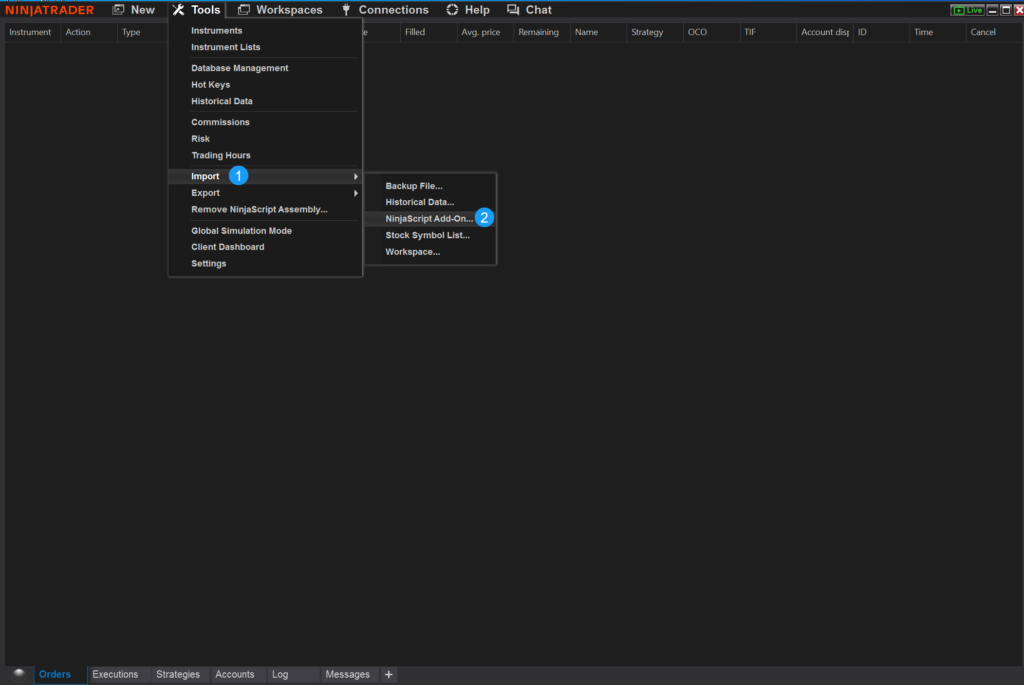
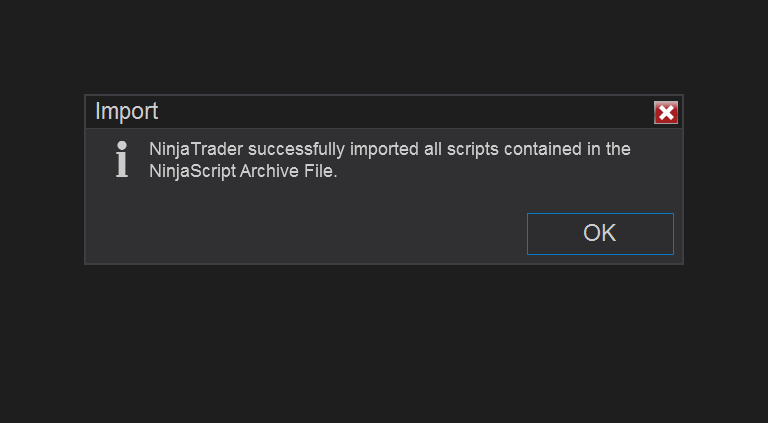
In the Control Center, go to Tools -> Import -> NinjaScript Add-On, then select the FrostMist ZIP package and complete the import.
4. Add strategy to chart
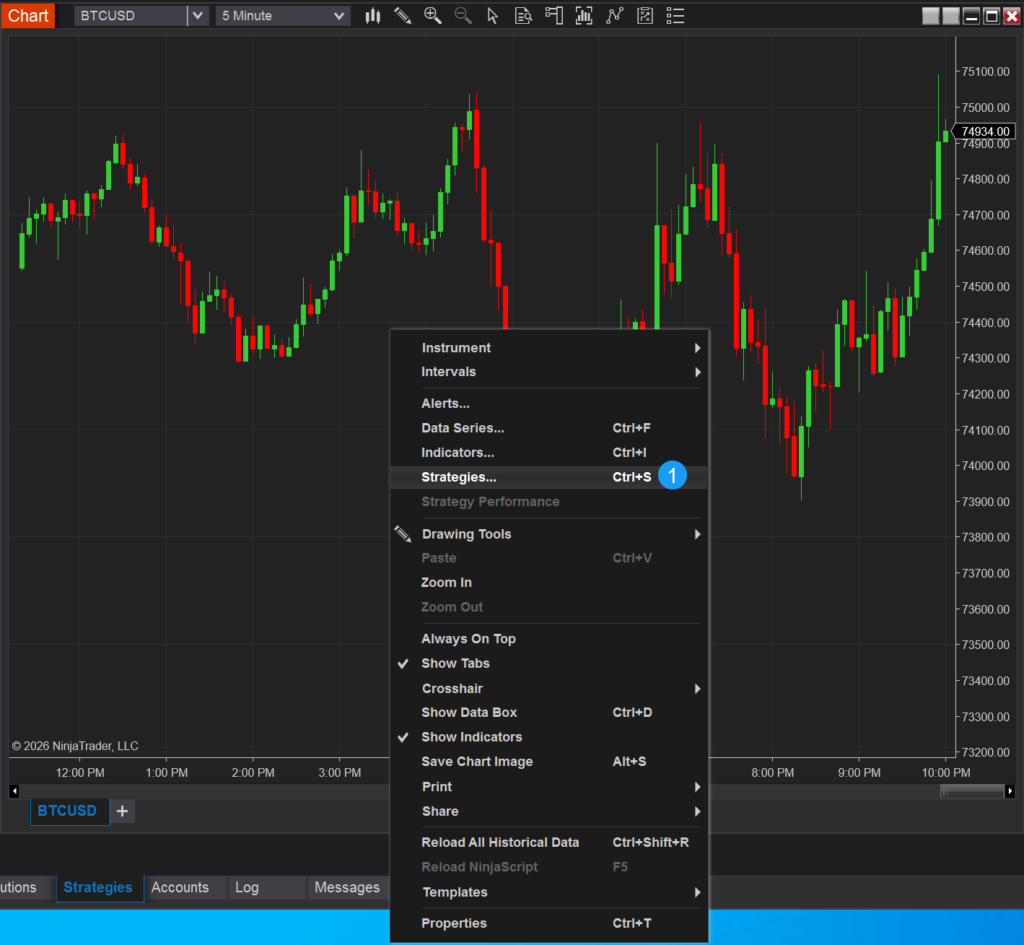
Open the chart where you want to use the strategy, press Ctrl+S, then add the strategy by double-clicking it or clicking the small Add button – this will open the strategy settings window.
5. Paste your FrostMist key into License
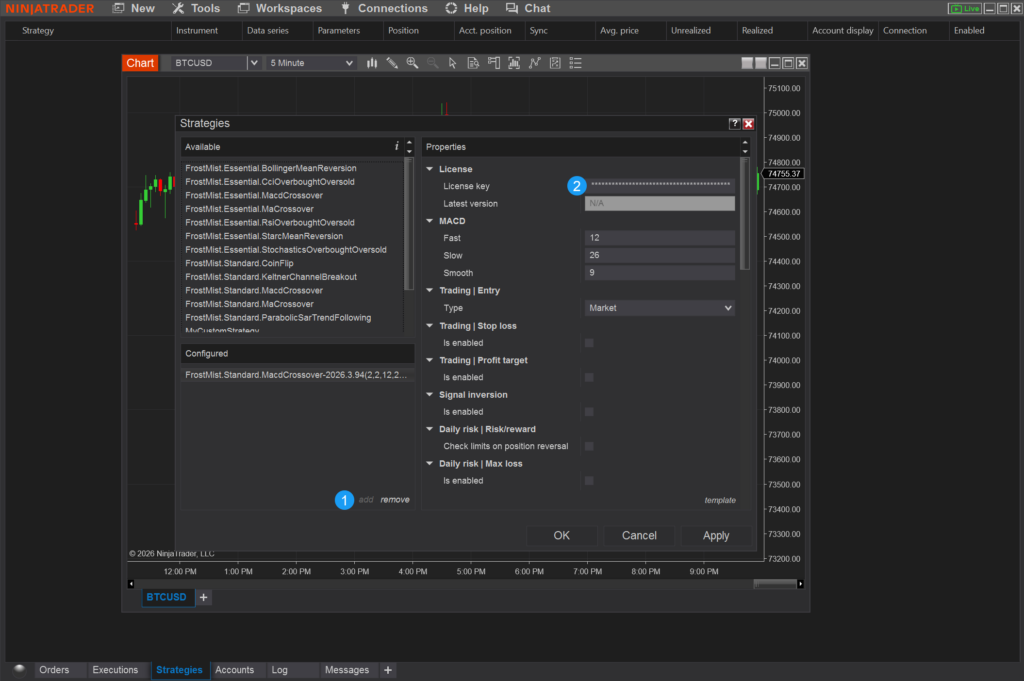
After adding the strategy by double-clicking it or clicking the small Add button, you can start configuring it.
Copy your FrostMist license key from My Account -> License Keys on frostmist.com, then paste it into the License field exactly as provided.
6. Configure the strategy
Adjust the strategy settings for your setup.
If you add the strategy through a chart, it will use that chart’s instrument and interval.
If you add it through the Strategies tab in Control Center, select the instrument and interval there.
Configure other strategy parameters if needed. See the guide for your specific strategy for more details.
7. Enable the strategy
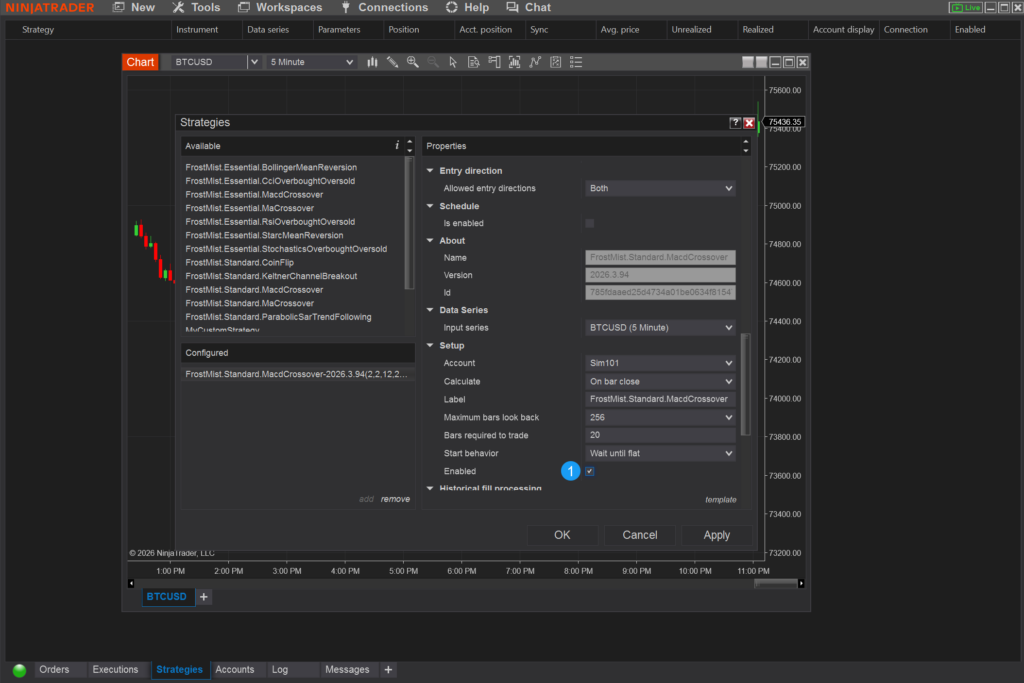
When the configuration is complete, enable the strategy in the same settings window: set Setup -> Enabled to true.
8. Confirm it is running
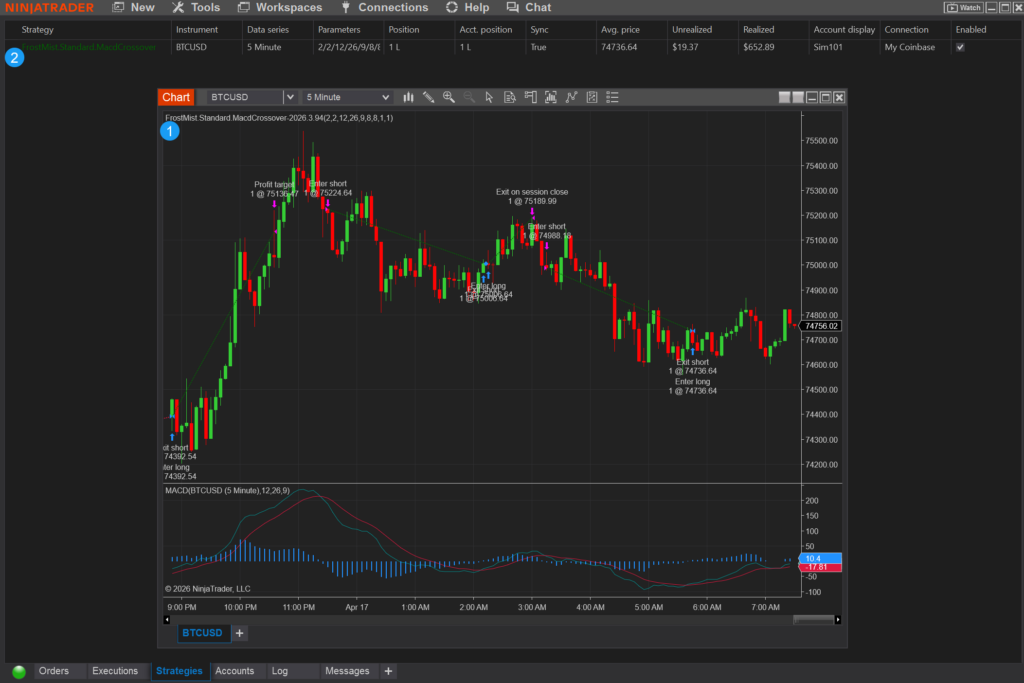
In Control Center, the strategy name should appear in green text.
On a chart, the strategy name and its parameters should be displayed on the chart. Make sure there is no (D) symbol next to the strategy name, since (D) means the strategy is disabled.